
On this page9 sections
You've just found a viral Short, you need the exact hook line, and there's no obvious transcript button in sight. That's the moment many creators hit the same wall, especially when they're trying to pull quotes for competitor research, rebuild a script, or check whether a Short is worth repurposing. The good news is that how to get a YouTube Shorts transcript is usually straightforward once you know which path fits the clip, the device, and the caption setup.
If you're benchmarking formats or mapping hooks, a good companion read is 2026 YouTube Shorts tips, because transcript work gets a lot more useful when you're also looking at pacing and structure. The catch is that not every Short exposes the same transcript controls, and that's where most guides fall apart. Some stop at the desktop trick, some ignore mobile, and almost all of them skip the cleanup step that turns raw text into usable research.
Why You Might Need a Shorts Transcript in the First Place
A creator finds a Short with a brutal hook, copies the caption line by line, and still misses what made it work. The pacing, the CTA placement, the way the line breaks land, those details disappear if you only watch once. A transcript gives you the exact words, so you can study the structure instead of guessing at it.
That matters for more than curiosity. If you're repurposing your own content, a transcript is the fastest way to pull a script into a blog draft, a caption, or a longer video outline. If you're doing competitor research, it helps you compare how different channels open, transition, and close. If you're working on accessibility or translation, the transcript becomes the base layer before any editing starts.
A lot of people also want the transcript because Shorts move too fast for normal note-taking. A good workflow lets you mark the hook, the problem setup, the twist, and the CTA without replaying the clip ten times. That's why tools that analyze Shorts at the structure level are more useful than generic “video to text” shortcuts.
Practical rule: if you only need a rough quote, a built-in transcript might be enough. If you need to compare patterns across clips, you want timestamps and structure labels.
For editors and analysts, this is also where a Short becomes data. The transcript isn't just text, it's the raw material for spotting repeated openings, recurring objections, and the phrases creators use to hold attention. That's the difference between reading a clip and reverse-engineering it.
Using YouTube's Built-In Transcript on Desktop
The cleanest starting point is still YouTube itself. YouTube Help says you can open the video's description and click Show transcript, then click any line to jump to that part of the video, and that native workflow is the lowest-friction option when captions exist on the clip. For Shorts, the main move is to load the Short in the regular watch view first, because the Shorts feed itself often hides the transcript controls.
A reliable desktop pattern is simple. Open the Short URL in a browser, change /shorts/ to /watch?v=, then open the description and look for Show transcript. If the transcript panel appears, you can read the auto-captions in place and copy what you need without leaving YouTube.
The part that trips people up is availability. The transcript only shows up when YouTube has captions or auto-captions for that video, so the method works well on some Shorts and not at all on others. If the Show transcript option isn't there, that usually means the clip doesn't have an accessible transcript in YouTube's player interface.
A few UI details help on the first pass. On desktop, check the three-dot menu near the player controls and the caption toggle in the player itself, because those are the places creators usually look before they find the transcript panel. Once the transcript is open, it stays tied to the video, so you're working with YouTube's own caption layer instead of a third-party extraction pass.
If you want a quick visual of the desktop workflow, the screenshot below shows the native path inside the player.

For a separate walkthrough that stays focused on transcript extraction from a creator's angle, the transcript tool for creators guide is useful because it follows the same desktop logic without turning the process into a software tour.
Getting a Transcript on Mobile and Switching Languages
Mobile is where most quick guides get vague. The Shorts player in the YouTube app doesn't usually surface the transcript button directly, so you have to move from the compact Shorts view to the video's full page. That extra tap is the difference between “nothing here” and the transcript controls you can use.
The mobile workaround
Start in the YouTube app, open the Short, then tap the title or the video details to reach the full watch page. From there, scroll into the description area and look for the transcript controls, which are easier to expose in the standard page than in the Shorts feed. If captions are available, you should see the same Show transcript path that desktop users get.
Language adds another decision layer. If the Short is multilingual, check the caption language inside the player before assuming the transcript is missing. Sometimes the source language is there, but the app is showing a different track or an auto-translated version that's fine for a quick read but weak for analysis.
If you're doing research, keep the source language when you can. Auto-translate helps you understand the clip, but it can flatten the wording that makes the Short work.
That matters most when you're comparing hooks across markets. A translated caption can tell you the topic, but it may blur wordplay, punchlines, or phrasing that carries the hook. For repurposing, translation may be enough. For pattern analysis, the original language is the version you want to preserve.

Using TransClipper When You Need a Cleaner or Faster Transcript
Native YouTube transcripts work when a Short has captions and you only need to pull one clip. They break down fast when you are collecting a batch of Shorts, dealing with a video that has no transcript, or trying to keep timestamps and structure intact for later review. In those cases, a dedicated tool like TransClipper keeps the link-based workflow in one place instead of forcing you back through the watch-page workaround.
Paste the YouTube Short URL, let the tool process it, and you get a transcript without extra steps in the Shorts feed or the desktop detour. TransClipper says it completes most transcripts in 5 to 10 seconds and longer clips in under 30 seconds, with support for 50+ languages and bulk import of up to 50 video links at once. That is useful when the job is to compare clips and keep the outputs organized.
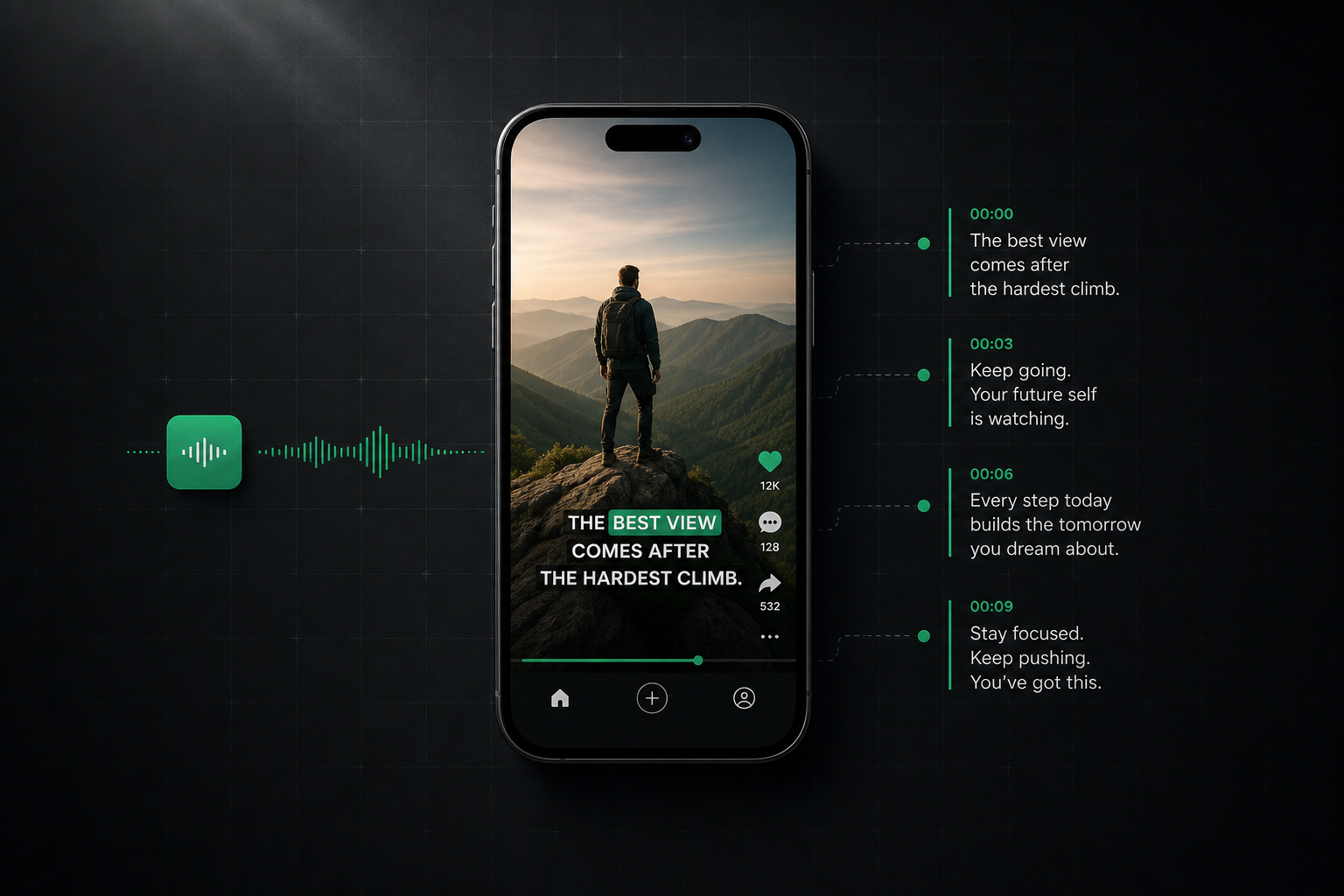
The bigger advantage is the shape of the output. When you are researching Shorts, a plain wall of text gets old fast. Timestamped text lets you jump back to the exact second a hook lands, a CTA appears, or a twist changes the angle. The internal YouTube Shorts transcript generator path is built for that kind of workflow, where the transcript is only the starting point for analysis.
TransClipper also fits better when captions are missing or when you are working across languages. If you are pulling content for creative testing, the transcript becomes one input among several, not the finished asset. Teams that produce ads and social variants often pair transcription with a script workflow like the ShortGenius AI ad generator, because a clean transcript can turn into usable copy much faster than raw video can.
After the transcript comes back, inspect the structure, not just the words. Hook, escalation, payoff, and CTA are easier to spot when the text is timestamped and segmented. That cuts out a lot of manual rewinding.
If you want the transcript to carry into a broader workflow, TransClipper's content repurposing tool is the relevant path because it is built for turning extracted text into something you can keep using.
Cleaning Up Transcripts for Research and Repurposing
Copy and paste is not a research workflow. It gives you words, but it does not give you a usable asset unless you decide how to handle timestamps, speaker labels, and segment breaks. If you are studying Shorts at any meaningful volume, the cleanup step is where the work begins.
A transcript for reference can keep timestamps. A transcript for a script draft usually reads better with them removed. An analyst or editor often needs both versions, one clean and one annotated, so the same clip can support different jobs without extra round-tripping.
Speaker labeling matters less for single-voice Shorts and more for stitched or dialogue-based clips. Even with one speaker, segment labels help you mark the hook, setup, twist, and CTA so you can compare one Short against another. That turns one transcript into a pattern library instead of a notebook page.
Keep an editable CSV or spreadsheet version if you expect to compare clips side by side. A plain text file is fine for reading, but it gets messy fast once you start tagging hooks, CTAs, and recurring phrases.
Export format matters too. TXT works for fast review, SRT helps when timing matters, and PDF is useful when you need to share a clean readout with a team. The point is not format for its own sake, it is preserving the transcript in a way that survives real content work.
One practical habit helps a lot, tag the opening line, the pivot line, and the closing ask before you do anything else. Those are the pieces that usually get reused, and they are the easiest to lose if you only store the transcript as one uninterrupted block of text.
For teams that want cleanup tied to reuse, the content format guide is worth comparing because it shows how to keep structure intact instead of flattening everything into one paste box. That matters if the transcript is headed into a script doc, a briefing note, or the content repurposing tool workflow.

Troubleshooting Accuracy and Missing Transcripts
The desktop trick fails for a simple reason, the transcript doesn't exist in a usable form yet. That can happen when YouTube never generated captions, when the creator disabled them, or when the language isn't supported well enough for the clip to expose a transcript. In those cases, repeating the same steps just wastes time.
Accuracy problems show up even when a transcript is available. Fast speech gets compressed, brand names turn into near-misses, music overlays bury words, and accents can throw off auto-captions. Shorts make this worse because creators often cram more information into less time, so one mistake can distort the whole hook.
Use a short decision tree
First, check YouTube's native transcript if the clip has one. That keeps you inside the source platform and tells you whether the problem is availability or quality. If it's missing or too messy for the task, fall back to an AI transcript tool that can process the URL directly.
If the clip still matters and the wording has to be exact, transcribe it manually. Don't do that for everything. Save manual work for the Shorts that affect strategy, claims, launches, or brand voice, because that's where a wrong word causes real downstream noise.
Non-English clips need a little more care. A translated caption can be useful for comprehension, but it's not always the right choice when you're trying to study phrasing, cadence, or localized hooks. If the original wording is part of the strategy, keep the source-language transcript and translate later as a separate step.
The fastest fix is usually to stop asking one tool to do every job. Native transcripts are good when they exist. AI extraction is better when you need speed or batch processing. Manual correction is the last mile, not the first move.
A Repeatable Workflow for Pulling Shorts Transcripts at Scale
The cleanest workflow starts with a simple rule. If you're handling one Short and it has captions, use YouTube's built-in transcript on desktop. If you're on mobile, switch to the full video page first. If you're pulling multiple clips, working across languages, or need timestamped output for research, move to an extraction tool that's built for batch work.
That rule keeps you from overengineering the easy cases. It also keeps you from forcing YouTube's native UI to do something it wasn't designed to do. Once the transcript is in hand, decide whether the next step is reading, editing, or repurposing, because the format you save should match that next job.
A practical checklist keeps the process tight:
- Capture the source URL first. Save the exact Short link before you do anything else, because it makes follow-up checks and reprocessing much easier.
- Keep the raw version. Store the unedited transcript with timestamps so you always have a reference point.
- Create a working copy. Strip timestamps or add labels if the transcript will be used for writing or analysis.
- Mark the key beats. Highlight the hook, the problem setup, the twist, and the CTA before you move on.
- Choose the right export. Use text for drafting, subtitle-style output for timing, and PDF when you need to share the result.
For research workflows, that last point matters more than most users admit. A transcript that can't be searched, compared, or exported is basically a temporary note. A transcript that's organized and reusable becomes part of a content system. If you also need to pull the underlying video cleanly, the YouTube Shorts download HD guide sits well alongside transcript work because teams often want the visual and the text together.
The repeatable rule is straightforward. Use YouTube first when the transcript is already there, use a dedicated tool when the clip is missing captions or you need scale, and clean the output before you try to analyze or repurpose it. That's the difference between collecting text and building a Shorts research workflow.
A CTA for TransClipper.


