
On this page19 sections
You're about to board a flight, a client wants an offline copy of a licensed clip, or you need the audio from your own video for an edit. You search for “converter de youtube de video,” find a page covered in oversized download buttons, and suddenly the simple job becomes a question about file quality, malware, privacy, and copyright.
The right answer isn't a list of random converter websites. First identify the job: offline playback, archiving, format conversion, transcription, or content analysis. Then choose the narrowest tool that solves it without sending your URL, file, or browsing history through an untrusted service.
YouTube's scale makes this distinction important. YouTube reported that Shorts averaged 70 billion daily views in early 2024, while later reporting in 2025 put the figure at 200 billion daily views, a nearly threefold increase in roughly fifteen months (Shorts viewing data and context). Manual review doesn't survive that volume. A repeatable workflow does.
What a YouTube Video Converter Actually Does in 2026
Many searches for a YouTube converter are not about conversion itself. The need is usually a usable copy for offline playback, editing, archiving, or research. Identify that need first, then choose a lawful workflow and the narrowest tool that handles it.
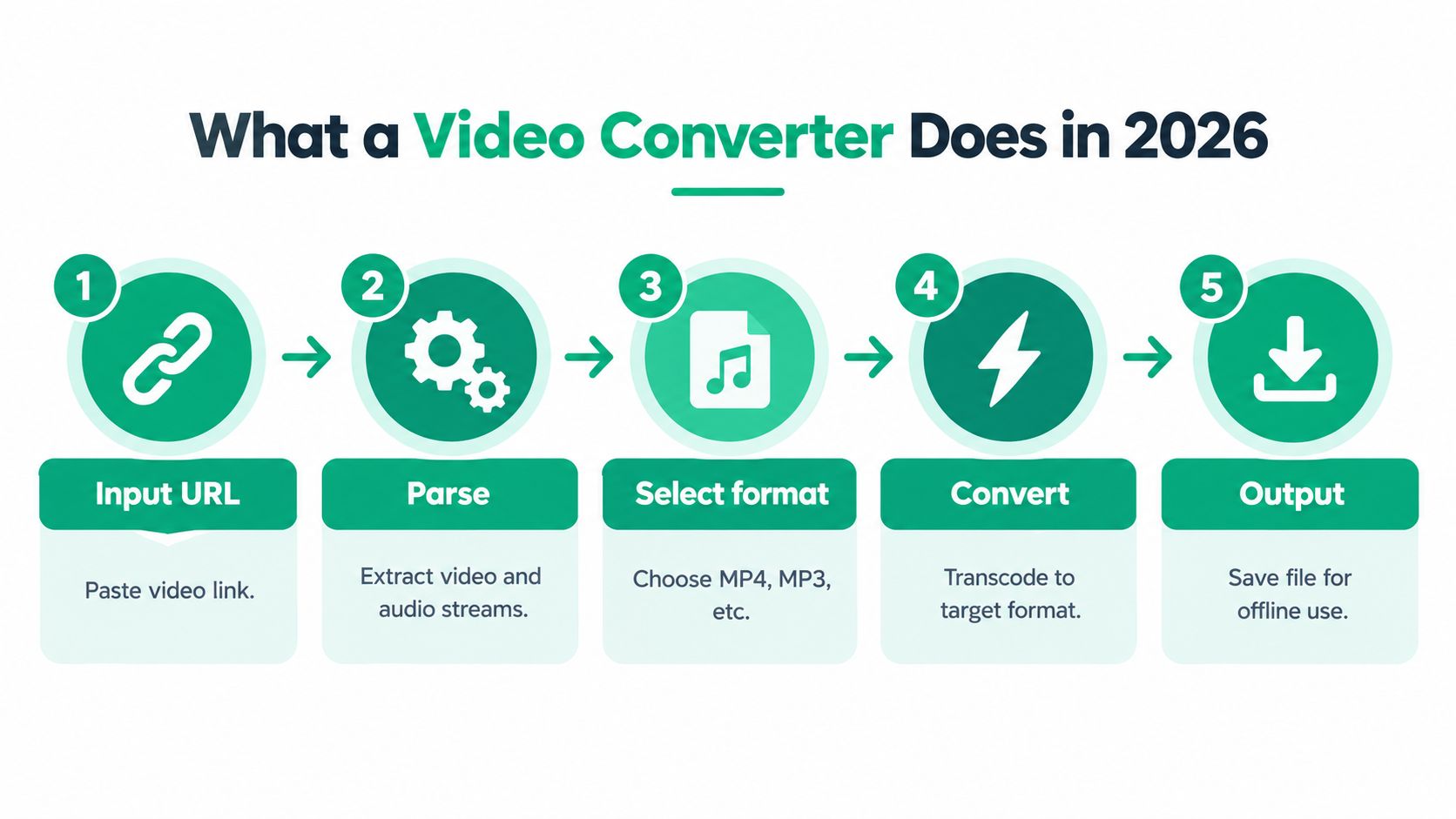
A converter generally performs these operations:
- It reads the video URL and identifies available audio and video streams.
- It downloads or receives those streams.
- It combines separate streams when necessary.
- It changes the codec, resolution, or audio format when requested.
- It packages the result as MP4, MKV, MP3, or WEBM.
The packaging stage affects quality and compatibility. Remuxing changes the container without re-encoding, so it can preserve the source quality. Transcoding decodes and re-encodes the media. That can reduce quality, but it may produce a smaller file or one that works with more software.
Match the tool to the job
Online converters fit a single, non-sensitive clip. You paste the URL, select an output, and receive a file without installing software. Use them only when the source is yours or you have permission to save it. The trade-off is clear: a third-party page receives the URL and may handle the conversion on its server.
Browser extensions reduce repeated clicking, but they often request broad browser permissions. That creates privacy and maintenance risks, especially if ownership changes or the extension starts injecting advertising. Skip extensions that demand unrelated access.
Desktop tools suit libraries, high-resolution sources, playlists, and repeatable projects. Applications built around yt-dlp, FFmpeg, JDownloader, or HandBrake keep processing on your own machine and give you more control over formats, naming, and batch work.
Practical rule: Choose the tool according to what you will do with the file afterward, not the largest quality label on a download page.
The phrase “converter de youtube de video” can also conceal a transcription task. If you need to study hooks, arguments, or calls to action, downloading an MP4 adds unnecessary work. A transcript with structured analysis may serve the research goal better than a converted file.
Step-by-Step Online Converter Workflow
Use an online converter only for a small, lawful job that doesn't justify installing a desktop application. The safest workflow is deliberately boring. Boring is good when a page is trying to make you click the wrong button.
Start with the source and URL
Open the video directly on YouTube and copy the full address from the browser bar. Don't use a shortened link copied from a message if you can avoid it, because the full URL makes it easier to confirm that you're processing the intended video.
Before pasting it, confirm your right to save the content. Your own uploads, material with an appropriate Creative Commons licence, public-domain footage, and files you have permission to use are clearer choices than someone else's copyrighted upload.
Pick a converter that uses HTTPS and has a restrained interface. Avoid pages that immediately demand an account, browser notifications, an extension, or an executable download.
Select the output deliberately
For ordinary video playback, MP4 is usually the practical default. Select the resolution you need, and don't assume that the highest option represents the best result. A converter can advertise a large resolution while delivering a heavily compressed file or an upscaled source.
For audio-only work, select an audio output and check whether the service lets you choose bitrate. If you need editing or analysis, preserving the original video file is often more valuable than creating several compressed derivatives.
Watch the download behavior
After starting the job, ignore any button that appears in a new tab or changes wording between clicks. Fake buttons, forced redirects, notification prompts, and unexpected browser extensions are common warning signs in converter ecosystems. The FBI malware warning context around fake converters and downloaders is enough reason to treat every extra download as hostile until verified.
A clean workflow should produce the expected media file, not a program installer. Never run an executable offered by the conversion page, and don't grant browser notification permissions just to access a download.
Verify before you work
Save the file, scan it with current antivirus software, and open it in VLC rather than trusting a browser preview. Check the first minutes and several later points for missing audio, broken playback, incorrect duration, and audio drift.
Keep the original downloaded file separate from edited copies. If the file fails verification, delete it and stop using that service. Don't upload it to another unknown converter in an attempt to repair it. That only extends the chain of exposure.
Online Converters vs Extensions vs Desktop Tools
The three tool categories solve different problems. Online services minimize setup, extensions minimize clicks, and desktop applications maximize control. The mistake is using the least controlled option for a workflow that needs traceability.
| Factor | Online Converters | Browser Extensions | Desktop Tools |
|---|---|---|---|
| Best use | One-off personal clips | Repeated browser saves | Archives, high-resolution files, and automation |
| Setup | Minimal | Low, but requires permission review | Higher, especially for command-line tools |
| Privacy | URL and processing may pass through a third party | Browser activity can be exposed through permissions | Processing can remain local |
| Batch work | Usually awkward | Convenient for simple repeated actions | Strongest option for playlists and libraries |
| Reliability | Depends on the site staying available | Depends on browser compatibility and publisher maintenance | More consistent once configured |
| Control | Limited format and metadata control | Moderate | Detailed codec, naming, archive, and scripting control |
| My recommendation | Use sparingly | Use only with a publisher you trust | Choose for serious work |
Online services
A web converter makes sense when the clip is non-sensitive, the task is occasional, and you don't need a reproducible process. It isn't a good fit for private research, client material, or a large archive. You also have less visibility into temporary storage, logs, advertising scripts, and file handling.
Extensions
Extensions feel like part of YouTube, but that convenience can obscure their permissions. Review what the extension can read and change, whether the publisher is identifiable, and whether it has a credible update history. Chrome, Firefox, and Edge also handle extensions differently, so a workflow that works in one browser may break or expose more data in another.
Desktop applications
For control, use a local toolchain. yt-dlp handles retrieval and selection, FFmpeg handles merging and transcoding, and HandBrake provides a graphical route for format conversion. JDownloader and commercial desktop downloaders can be easier for users who don't want a command-line workflow.
A converter you can configure, audit, and run again is more useful than a website that happens to work today.
Choosing MP4, MP3, MKV, or WEBM
A file extension tells you the container, not the complete quality story. The codec, bitrate, resolution, frame rate, and whether the file was re-encoded determine what you will see and hear.
| Format | Best for | Typical codec | Quality notes |
|---|---|---|---|
| MP4 | Phones, editing, general playback | H.264, sometimes H.265 | Broad compatibility. Quality depends on codec and bitrate |
| MP3 | Audio-only listening and voice archives | MP3 audio | Lossy. Choose a suitable bitrate instead of expecting recovered source quality |
| MKV | Local archives and flexible media storage | H.264, H.265, VP9, AV1 | Strong container support for subtitles and multiple audio tracks |
| WEBM | Browser-focused delivery | VP8, VP9, or AV1 | Efficient for web use, but compatibility outside browsers varies |
MP4 is the default for a reason
Choose MP4 with H.264 when the file needs to play on phones, laptops, presentation systems, and common editing software. H.265 can reduce storage in some workflows, but older devices and applications may handle it less smoothly.
Use MKV when you want to preserve multiple audio tracks, subtitle streams, or a source stream without unnecessary re-encoding. It's a better archive container than a universal sharing format.
MP3 is appropriate when you only need sound. It won't improve the original audio, and converting an already compressed stream into MP3 adds another lossy stage. For speech-focused material, a moderate setting is usually more sensible than chasing maximum file size.
WEBM fits browser delivery and tools designed around YouTube-native formats. It isn't my general recommendation for phone sharing or editing unless the destination specifically expects it.
For audio extraction details, see this practical guide to saving audio from YouTube videos. If you're building an archive, keep the original alongside any MP3 derivative. That preserves a better source for future editing or transcription.
Legal and Copyright Rules Most Guides Skip
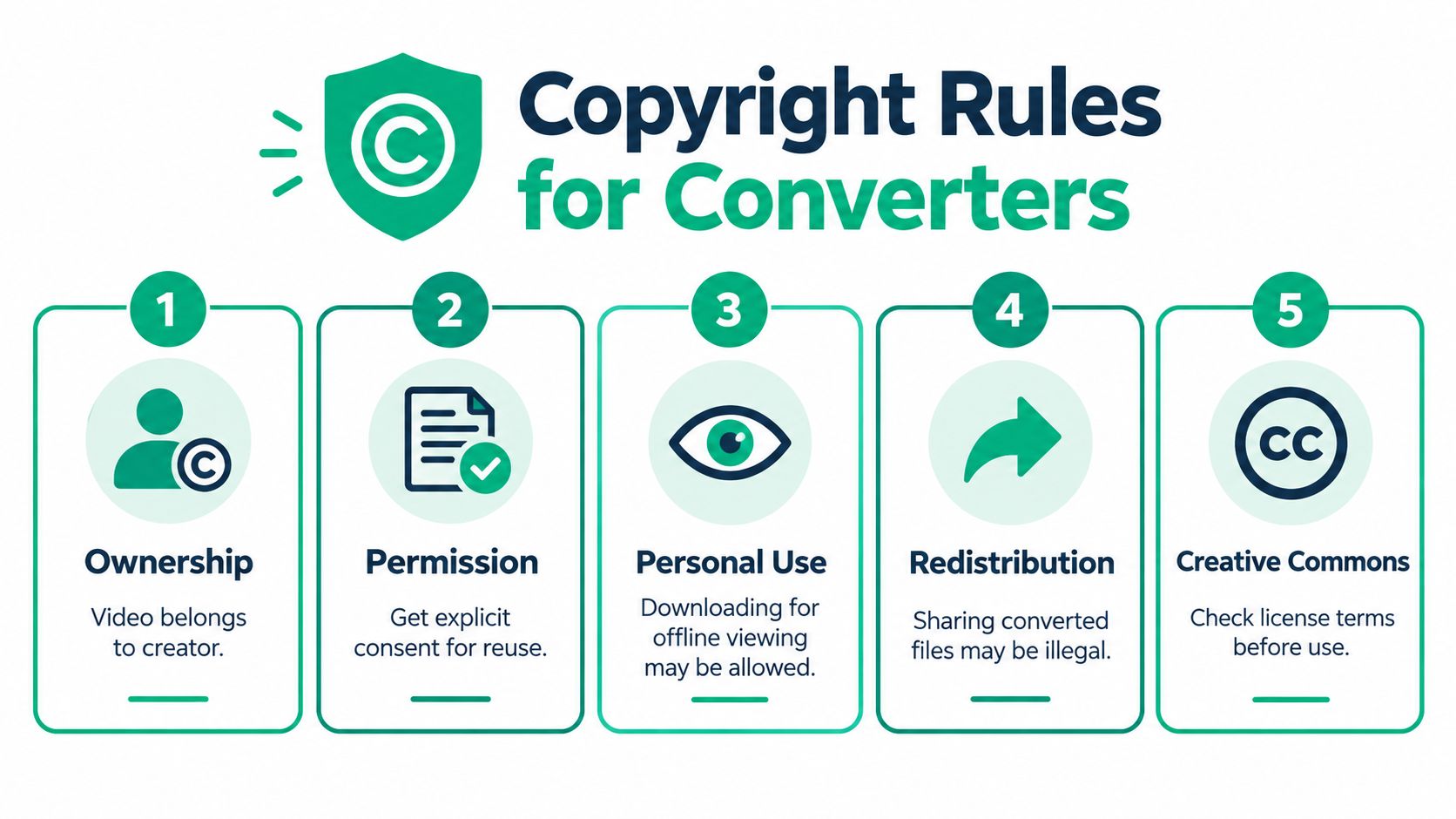
Conversion doesn't create permission. The video still belongs to its creator or rights holder, and changing a stream into MP4 or MP3 doesn't grant you the right to publish, remix, sell, or redistribute it.
Lawful situations are clearer when you separate access from reuse. Saving your own upload for backup is different from downloading another creator's tutorial and reposting it. A public-domain clip or a Creative Commons video may be reusable, but the specific licence can require attribution or restrict commercial use.
You should also distinguish platform terms from copyright law. YouTube's Terms of Service generally restrict unauthorized downloading in many regions, even when a user believes the copy is for personal use. Official offline features, creator-provided downloads, licensed tools, and explicit permission are safer routes than assuming that a publicly viewable video is free to save.
Check four things before converting
- Ownership: Are you the uploader or rights holder?
- Licence: Does the video carry a Creative Commons or public-domain status?
- Permission: Do you have written consent for the intended use?
- Distribution: Will you share, publish, monetize, or remix the file?
A private working copy may still be subject to platform rules. A converted file intended for public release needs a much stronger rights basis. Read the description, licence information, and creator's stated permissions before you begin.
For a plain-language walkthrough of permitted use and risk, this guide to the legal way to convert YouTube videos is a useful reference. For practical download considerations, also review how to download YouTube video without a watermark, while still checking the rights attached to the source.
The safest default is simple: use official download options whenever they exist, and convert only material you own, have permission to use, or can lawfully access under its licence and platform terms.
A Real Workflow for Creators and Researchers
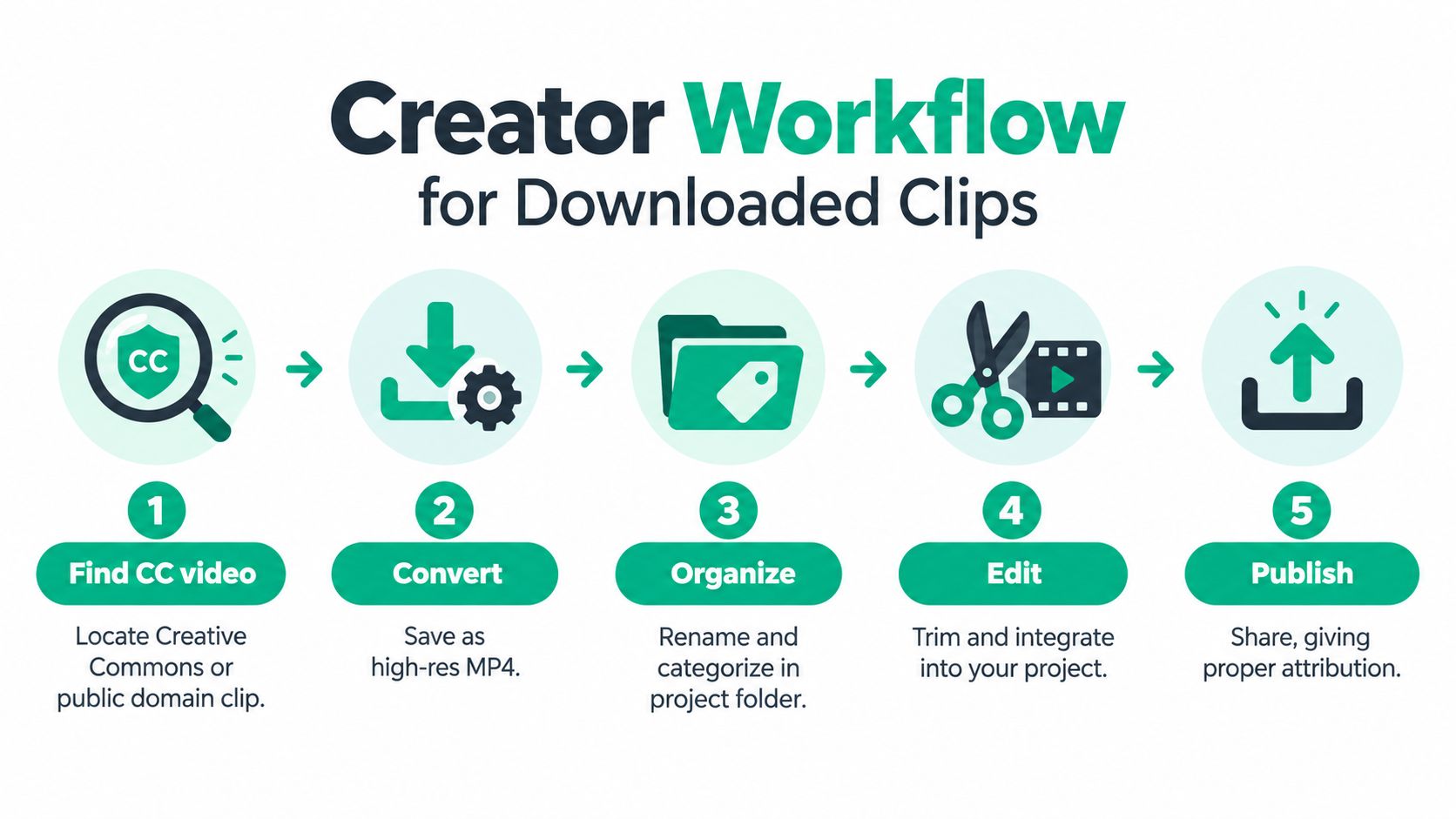
A researcher wants to study the hook structure of a Creative Commons video. The useful deliverable isn't just an MP4. It's a traceable package containing the source link, local media, transcript, observations, and a clear retention decision.
Start by copying the full URL into a trusted local desktop tool. Save the highest practical local video file as the working master, then create a separate audio derivative for transcription. Keep both files in a project folder named with the retrieval date and a short source identifier.
Keep the paper trail local
The analyst can process the audio with a local transcription model instead of uploading it to an unknown website. That reduces the number of services handling the media and makes it easier to reproduce the work later. For short-form research, TransClipper accepts supported TikTok, Instagram Reel, and YouTube Short URLs and provides transcripts with analysis of hooks, structure, and calls to action.
Store the raw file as read-only when possible. Create a working copy for trimming, thumbnail tests, and hook comparisons. Don't overwrite the source with an edited excerpt, because later analysis may depend on the original timing or audio.
Use a repeatable record
A simple workflow record should include:
- Source link: The original YouTube URL and licence status.
- Acquisition tool: The desktop application and relevant settings.
- Output files: Master video, audio derivative, and any excerpts.
- Transcription method: Local model or approved service.
- Analysis notes: Hook timestamp, narrative movement, CTA, and editing observations.
- Retention policy: What stays, what gets deleted, and who can access it.
A creator repurposing their own upload can follow the same process, then edit a short excerpt for a thumbnail or social test. A journalist or researcher should be stricter about permissions, internal sharing, and removal of identifying metadata before circulating a derivative file.
The strongest workflow keeps conversion, transcription, and analysis connected without making every stage dependent on a new web service. For broader repurposing, a documented content creation workflow helps turn one source into organized research rather than a folder of unexplained downloads.
Safe Defaults and Final Verdict
Use this checklist before you save anything:
- Verify the source: Confirm ownership, licence, or permission.
- Choose the narrowest tool: Use a reputable online service for an occasional low-risk clip, and local desktop tools for archives or batches.
- Scan every download: Don't open unexpected installers or executables.
- Preserve the master: Keep the original file separate from edits and derivatives.
- Record the process: Save the source URL, format, tool, and intended use.
- Avoid notification prompts: A converter doesn't need browser notifications to create a media file.
- Stop for protected content: Don't try to bypass DRM, paywalls, or access controls.
For everyday playback, MP4 with H.264 is the safest compatibility choice. Use MP3 when you need audio only, MKV when archive flexibility matters, and WEBM when a browser-based destination specifically requires it. Don't judge a file by its extension alone. Inspect the codec, resolution, bitrate, subtitles, audio tracks, and synchronization.
The single most reliable path for a casual user is a reputable desktop client, not a page covered in fake download buttons. Creators should build a local yt-dlp plus FFmpeg pipeline when they need repeatability. Researchers should keep an offline player, a controlled transcription method, and a written source record. Online converters remain acceptable for isolated, lawful jobs, but they shouldn't become the foundation of a serious media library.
If your real need is searchable video research rather than raw file conversion, visit TransClipper to turn supported short-form video links into transcripts and structured hook, narrative, and CTA analysis. Use it as part of a documented workflow, while keeping permissions and source rights clear.


